
IPTV apps for Smart TV allow users to watch television channels over the internet using Smart TVs, Android TV devices, Fire TV Stick and TV boxes. Installing an IPTV player on a Smart TV is usually quick and easy.
In this guide, we explain how to install IPTV apps and start streaming using players like IBO Player, IBO Pro Player and Bob Player.
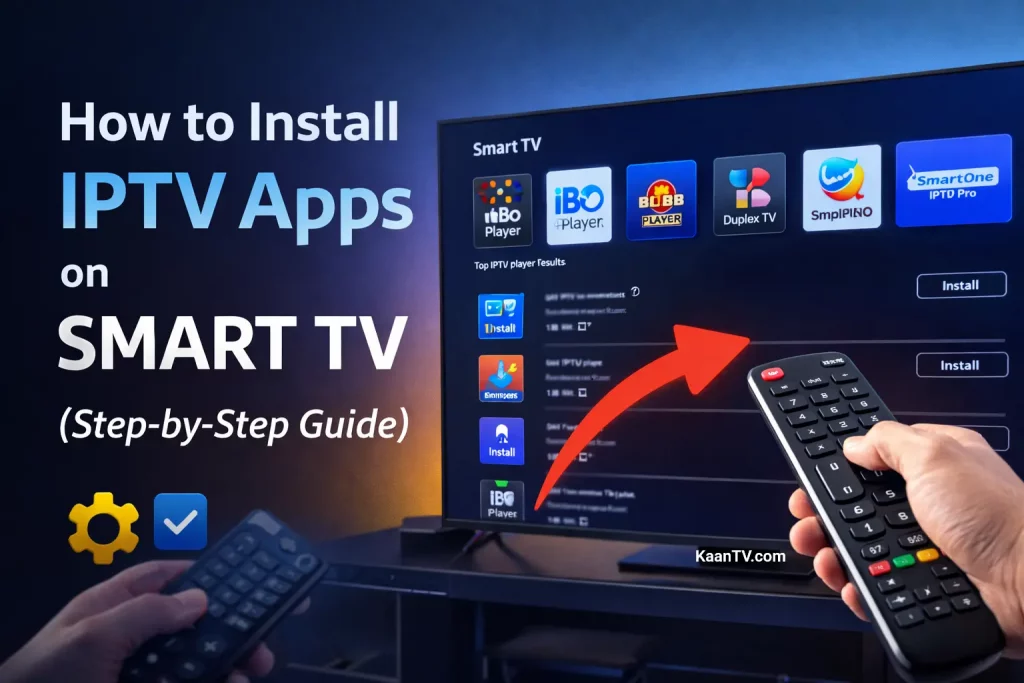
Step 1: Open the App Store to Install IPTV Apps
Most Smart TVs have their own application store where IPTV players can be downloaded.
For example:
- Samsung Smart TV → Samsung App Store
- LG Smart TV → LG Content Store
- Android TV → Google Play Store
Search for the IPTV app you want to install.
Step 2: Download an IPTV Player
Popular IPTV apps for Smart TVs include:
Install the IPTV player from the app store.
Step 3: Open the IPTV App
After installing the IPTV app, open it on your Smart TV.
Most IPTV players will display a MAC address or Device ID that is required for activation.
Make sure to write down this information.
Step 4: Upload Your IPTV Playlist
To watch channels, you need to upload your IPTV playlist.
This can usually be done through the app’s website using:
- M3U link
- Xtream Codes login
- Username and password
Once the playlist is uploaded, restart the IPTV app.
Step 5: Start Streaming with IPTV Apps
After activation and playlist upload, the IPTV app will load your channels.
You can now browse categories and start watching TV through your IPTV player.
Final Thoughts
Installing IPTV apps on Smart TVs is simple and only takes a few minutes. Once the IPTV player is installed and activated, you can easily stream channels using your IPTV playlist.
Popular apps such as IBO Player, IBO Player Pro and Bob Player make the setup process very straightforward.