
IBO Pro Player M3U Setup – Upload & Manage Your Playlist
IBO Pro Player M3U Setup allows you to upload and manage your IPTV playlist through the official web portal.
In this tutorial, you will learn:
✔ How to log in to the management portal
✔ Where to find your MAC address and Device Key
✔ How to upload your M3U URL correctly
✔ How to edit or replace your playlist later
If your Pro version is not activated yet, complete the activation first before proceeding.
How Playlist Management Works in IBO Pro Player




IBO Pro Player does not store playlists directly on the TV.
Instead, playlists are managed online through:
This portal allows you to:
– Add a new M3U playlist
– Edit an existing playlist
– Replace expired links
– Protect playlists with a PIN
⚠ Important: The app does not provide TV channels.
You need your own valid IPTV M3U URL.
Preparation – Check Device Information
Before starting the configuration:
1. Open IBO Pro Player on your Smart TV.
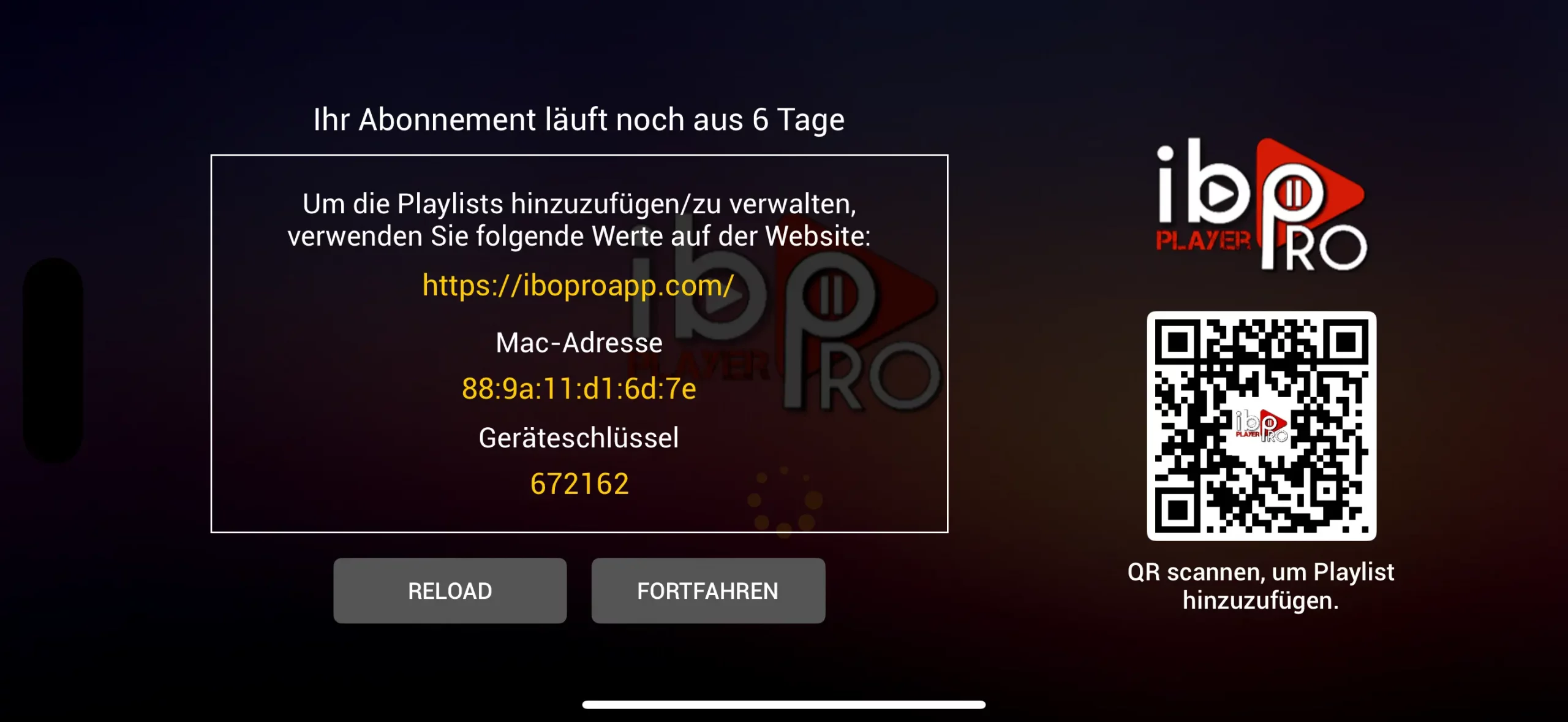
2. On the startup screen you will find:
– MAC address
– Device Key
You will need these details to log in.
Step-by-Step: Upload M3U to IBO Pro Player
Step 1 – Open the Management Website
Open your browser and go to:
Click on Manage Playlists to access the login area.
Step 2 – Login with MAC Address
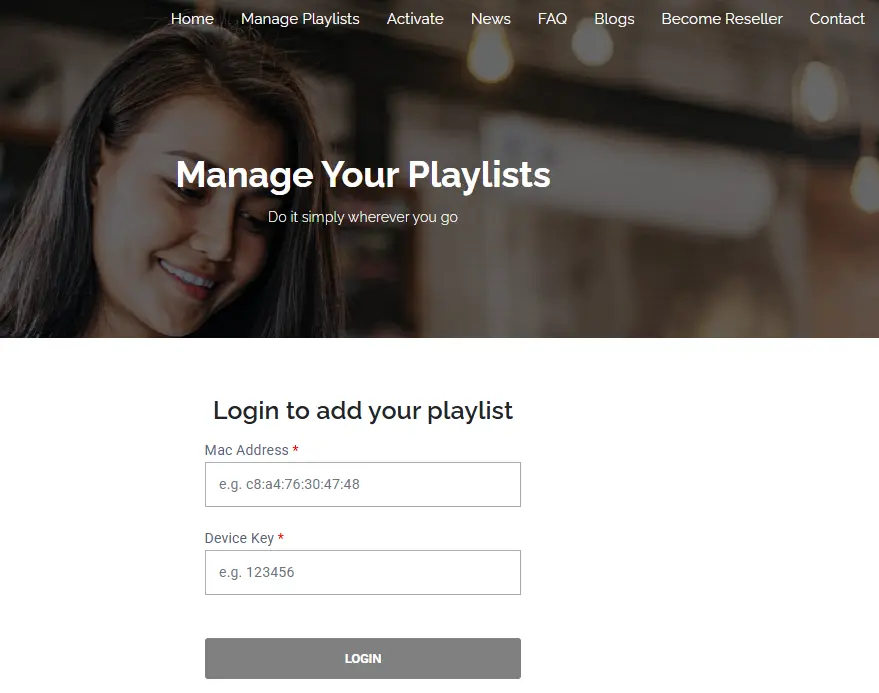
Enter the following details:
– MAC address
– Device Key
Click Login to access your playlist dashboard.
After successful login, you will see your playlist management panel.
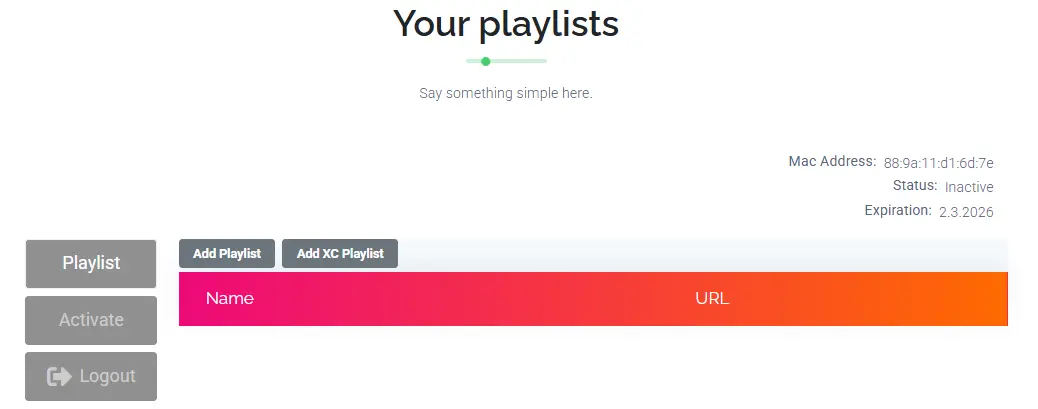
Step 3 – Add a New Playlist
Inside the dashboard:
Click Add Playlist
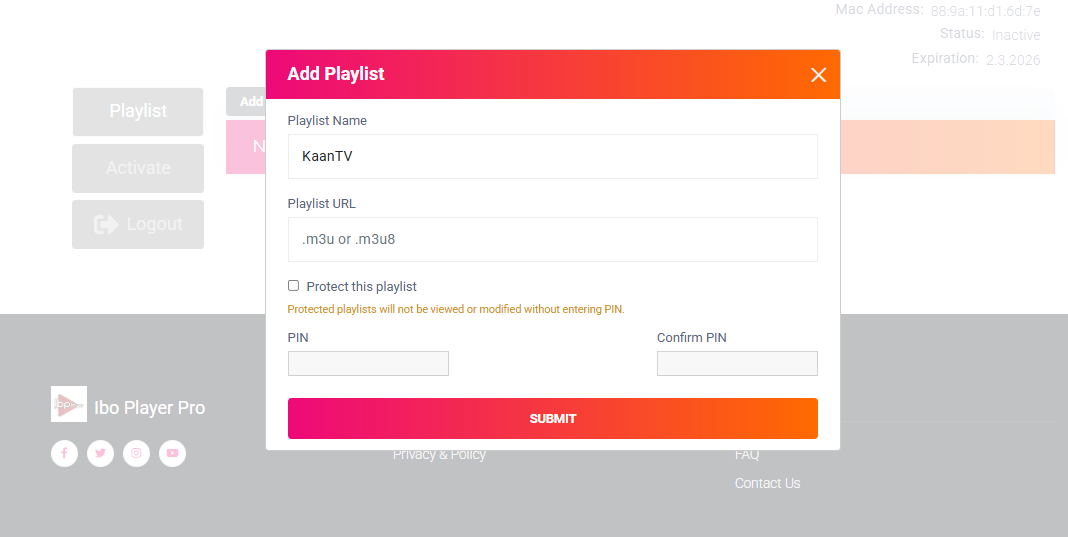
Now enter:
– A custom name for your playlist
– Your M3U URL (.m3u or .m3u8)
Click Submit to save.
The playlist will be synced automatically.
Step 4 – Protect Playlist with PIN (Optional)
IBO Pro Player allows you to secure your playlist with a PIN.
If you enable “Protect this playlist”:
– Changes require a PIN code
– Unauthorized modifications are prevented
This is recommended for shared devices.
Step 5 – Reload the App
After saving your playlist:
👉 Restart the IBO Pro Player
or
👉 Use the Reload function in the menu
Your IPTV channels should now appear.
Playlist Not Working?
If your channels are not appearing, check:
❌ Incorrect M3U URL
❌ Expired IPTV subscription
❌ Extra spaces in the link
❌ Extra spaces in the link
❌ License not activated
In most cases, the issue is caused by an invalid playlist link.
IBO Pro Player M3U Setup: How to Change Your Playlist
To replace your playlist:
1. Log in at iboproapp.com
2. Edit your existing playlist
3. Insert the new M3U URL
4. Save
5. Restart the app
Changes sync instantly.
When Activation Is Required
If your playlist status shows “Inactive”, your license may have expired.
You must activate IBO Pro Player before playlists can load.
👉 Activate IBO Pro Player License
FAQ – IBO Pro Player M3U Setup
How long does it take to upload an M3U playlist to IBO Pro Player?
The setup usually takes less than five minutes. After logging in to iboproapp.com, simply enter your M3U URL, save the changes and restart the app.
Why is my playlist not loading in IBO Pro Player?
This can happen if:
– The M3U URL is incomplete or incorrect
– There are extra spaces in the link
– Your IPTV subscription has expired
– The trial period ended
– Your license is not activated
Double-check the playlist URL first — this is the most common issue.
What does “Inactive” mean in IBO Pro Player?
Der IBO Pro Player bietet eine erweiterte Benutzeroberfläche und zusätzliche Verwaltungsoptionen. Die Einrichtung der Playlist erfolgt jedoch ebenfalls über eine Online-Verwaltungsseite.
Kann ich meine Playlist im IBO Pro Player später bearbeiten?
The “Inactive” status usually appears when:
– The free trial has expired
– The license is not activated
– There is a problem with the playlist connection
You may need to activate your license before the playlist can load.
Does IBO Pro Player support M3U8 links?
Yes. The application supports both:
– .m3u
– .m3u8
Make sure the link is complete and begins with http:// or https://.
What is the Device Key used for?
The Device Key is required to log in to iboproapp.com together with your MAC address. It verifies that you are managing the correct device.
Do I need to restart the app after uploading the playlist?
Yes. After saving your M3U link, restart the app or use the reload function to sync the playlist.
Can I change my playlist later?
Yes. You can log in anytime to iboproapp.com and:
– Edit your current playlist
– Replace your M3U link
– Delete old playlists
– Add a new playlist
Can I use multiple playlists in IBO Pro Player?
Yes. The Pro version allows management of multiple playlists, depending on your license type.
Is internet required for playlist configuration?
Yes. Since the setup is done through an online portal, an active internet connection is required.
Are playlists stored locally on my TV?
No. Playlists are stored on the official IBO Pro Player server and synchronized with your device.
Why does my playlist show channels but not play?
Possible reasons:
– IPTV provider server issues
– Slow internet connection
– Expired IPTV subscription
– Geo-restrictions
Try restarting your router and checking your IPTV provider status.
Can I protect my playlist with a PIN?
Yes. When adding or editing a playlist, you can enable PIN protection to prevent unauthorized changes.
Is IBO Pro Player the same as IBO Player Pro?
No. These are different applications from different providers. Always verify the correct app before activation.
Do I need to activate the license before uploading an M3U link?
If your trial period has expired, yes. Without activation, playlists may show as inactive.
What happens if I reset my TV?
If the MAC address changes, you may need to reactivate your license.