
IB Player M3U Setup – How to Add an M3U URL (2026)
The IB Player M3U setup allows you to add and manage your IPTV playlist quickly and securely. In this step-by-step guide, you’ll learn how to add an M3U URL in IB Player, connect your playlist and fix common setup issues on Smart TVs.
This step-by-step tutorial shows you how to:
✔ Add an M3U URL to IB Player
✔ Connect your IPTV playlist correctly
✔ Find your MAC address and Device Key
✔ Fix common setup errors
✔ Update or change your M3U link later
⚠️ Important: IB Player does not provide channels or content. You must have a valid IPTV M3U playlist from your provider.



IB Player M3U Setup Preparation – What You Need
Before you start the IB Player M3U setup, make sure you have the following information ready:
✔ Your MAC Address
✔ Your Device Key
✔ Your M3U URL from your IPTV provider
IB Player does not host or provide content. A valid IPTV playlist is required.
Where to Find Your MAC Address in IB Player
Open the IB Player app on your Smart TV.
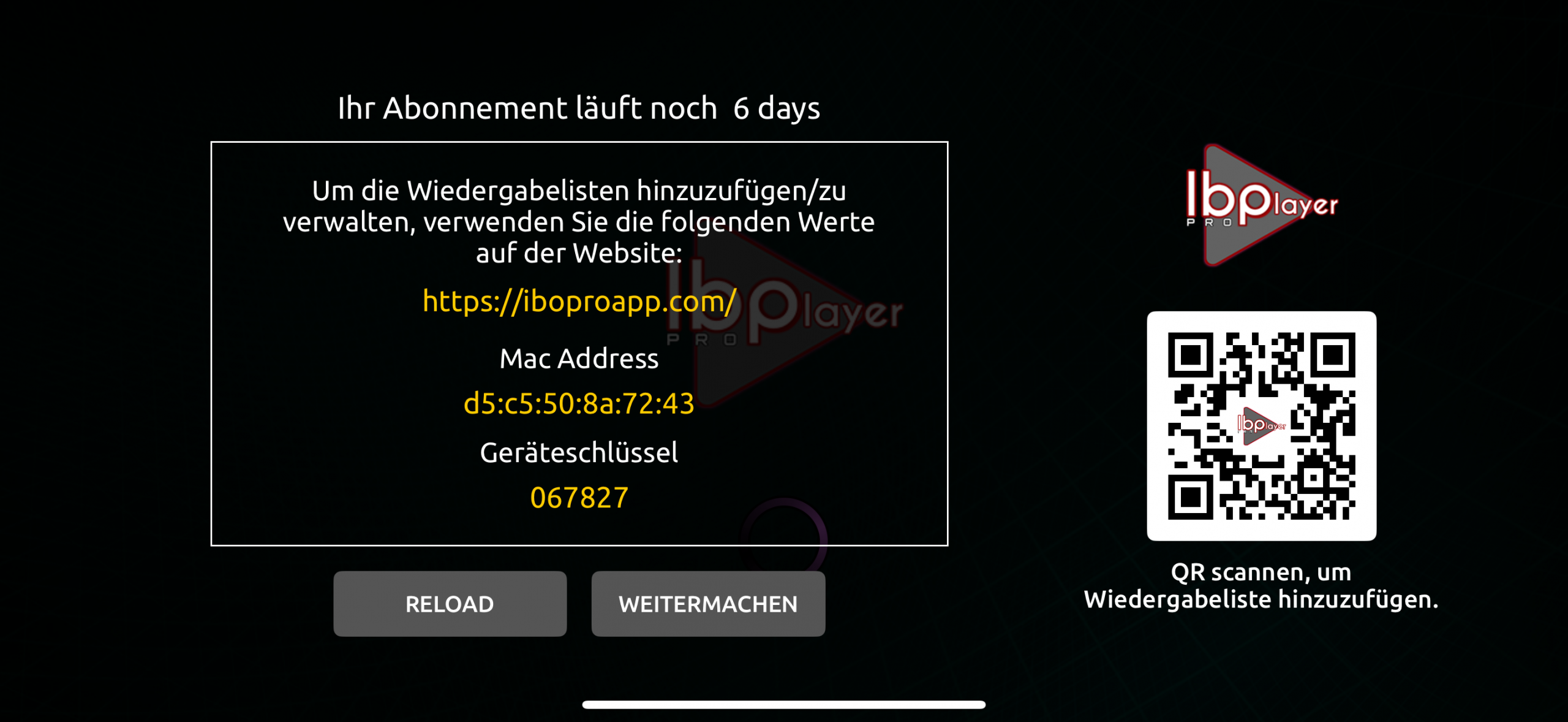
On the home screen, you’ll see:
– MAC Address
– Device Key
Write both down carefully. You’ll need them to log in to the playlist portal.
IB Player does not host or provide content. A valid IPTV playlist is required.
How to Add an M3U URL in IB Player (Step-by-Step Guide)
Step 1 – Login to IB Player Manage Playlist
Open your browser and go to the official IB Player website.
Click “Manage Playlist”.
You’ll be redirected to the login page.
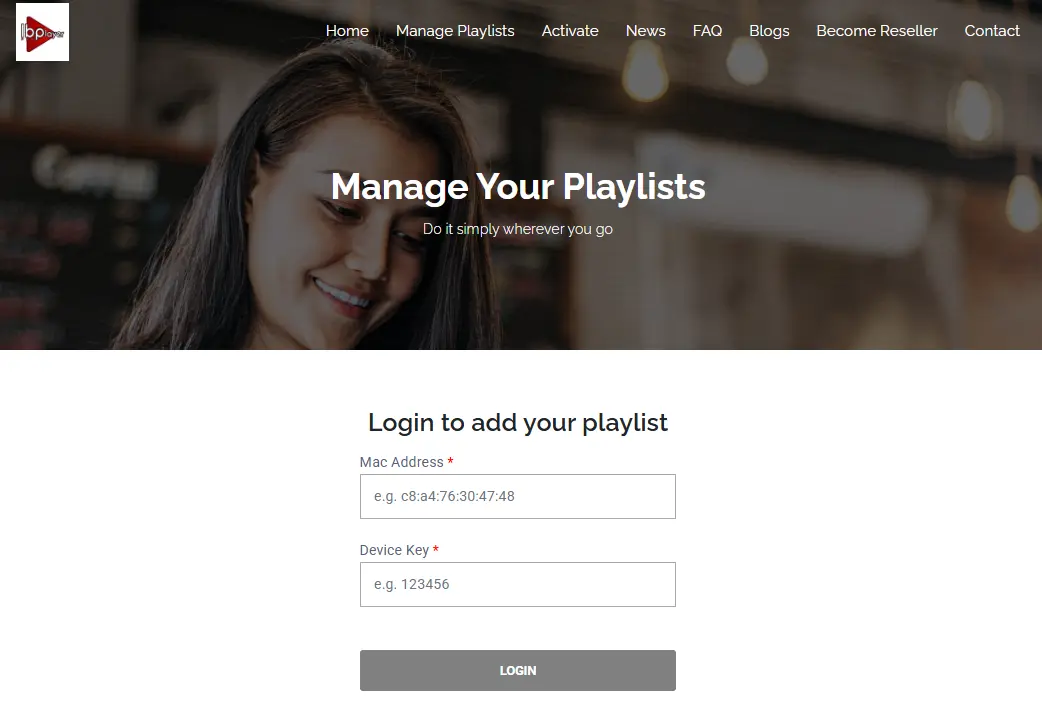
Enter:
– MAC Address
– Device Key
– Security Code
Then click Login.
Step 2 – Add M3U URL in IB Player
After login, you’ll see the dashboard.
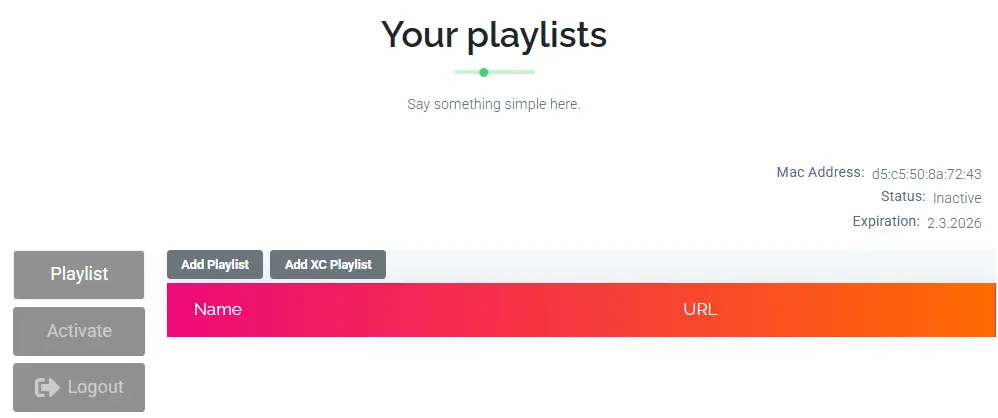
Click Add Playlist.
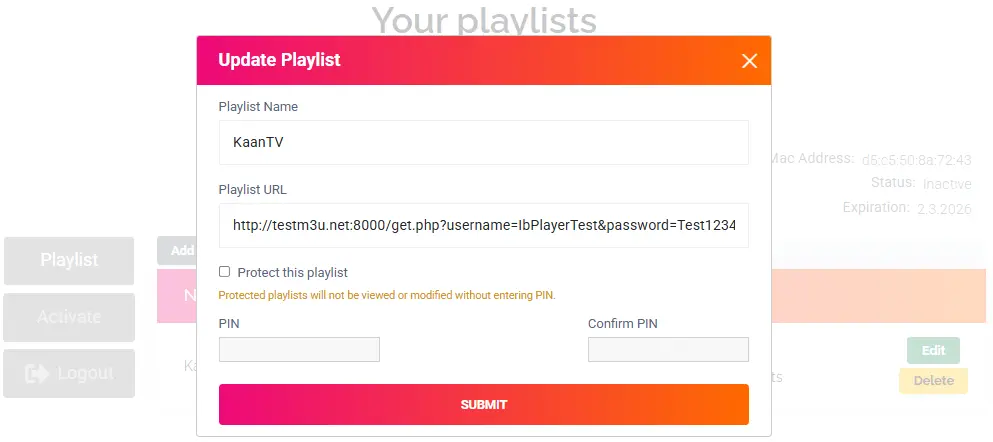
Now:
1. Enter a playlist name
2. Paste your M3U URL
3. Click Save
Your IB Player M3U setup is almost complete.
Optional: Protect Playlist with PIN
If multiple people use the TV, you can enable:
“Protect this playlist”
This requires a PIN to edit the playlist later.
Benefits:
– Prevent accidental changes
– Control access
– Extra security for households
Step 3 – Reload the App on Your TV
After saving your playlist:
– Restart the IB Player app
or
– Use the Reload option in the menu
Your IPTV channels should now load automatically.
Update Your IB Player M3U Setup (Change M3U URL)
If your provider sends you a new link:
1. Log in again on the website
2. Edit the existing playlist
3. Replace the old M3U URL
4. Save
5. Restart the app
Changes apply instantly after reload.
Why IB Player’s Online Playlist System Is Better
✔ Manage playlists from any browser
✔ No file uploads
✔ Instant updates
✔ Multiple playlists supported
✔ Clean and simple dashboard
✔ Übersichtliche Bearbeitung
Is Your IB Player Not Activated?
After the trial period, activation is required to permanently save your playlist.
Fast processing. Secure payment. No subscription required.
IB Player M3U Setup – Frequently Asked Questions
How do I add an M3U URL in IB Player?
Log in on the official website using your MAC address and Device Key. Click “Add Playlist”, paste your M3U link and save. Restart the app.
Why is my playlist not showing in IB Player?
Common reasons:
– Incorrect M3U URL
– Expired IPTV subscription
– Player not activated
– App not restarted after saving
Can I add multiple M3U playlists?
Yes. IB Player allows multiple playlists inside the “Manage Playlists” section. Each playlist can be edited separately.
Do I need to activate IB Player?
Yes. After the trial period ends, activation is required to keep your playlist active and prevent deletion.
Where can I find my MAC address in IB Player?
Your MAC address and Device Key appear directly on the app’s home screen when you open IB Player on your Smart TV.