
IBO Player M3U Setup – How to Add IPTV Playlist
This complete IBO Player M3U setup guide shows you exactly how to upload your M3U link,
connect your device, and fix common playlist issues in minutes.
Whether you’re using Samsung, LG, Android TV or Fire TV, the process is quick once you know the steps.
⚠️ Not activated yet?
If your player is still in trial mode, you’ll need to activate it before your playlist saves permanently.
What Is an M3U Link in IBO Player?


Before You Start – Install IBO Player
Make sure the app is installed on your device:
– Samsung Smart TV
– LG WebOS
– Android TV
– Fire TV / TV Boxes
👉 View the installation guide for your device
How to Add IPTV Playlist to IBO Player (Step-by-Step)
Step 1 – Open IBO Player on Your TV
Launch the app.
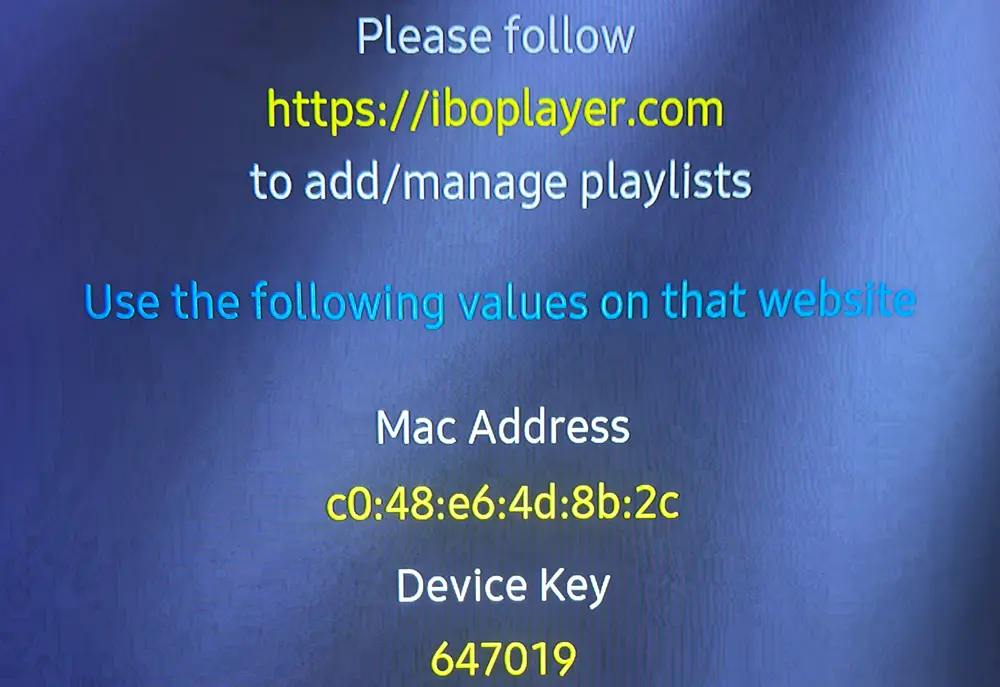
On the screen you’ll see:
– MAC Address
– Device Key
Keep this visible.
Step 2 – Open the Official Website
On your phone or PC, go to:
Accept the legal terms.
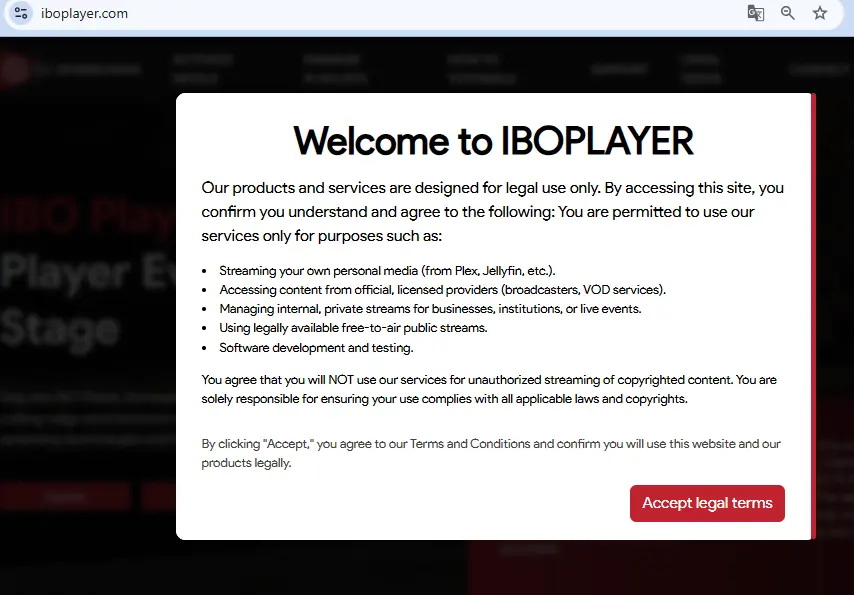
Click Manage Playlist.
Step 3 – Login with Your Device Details
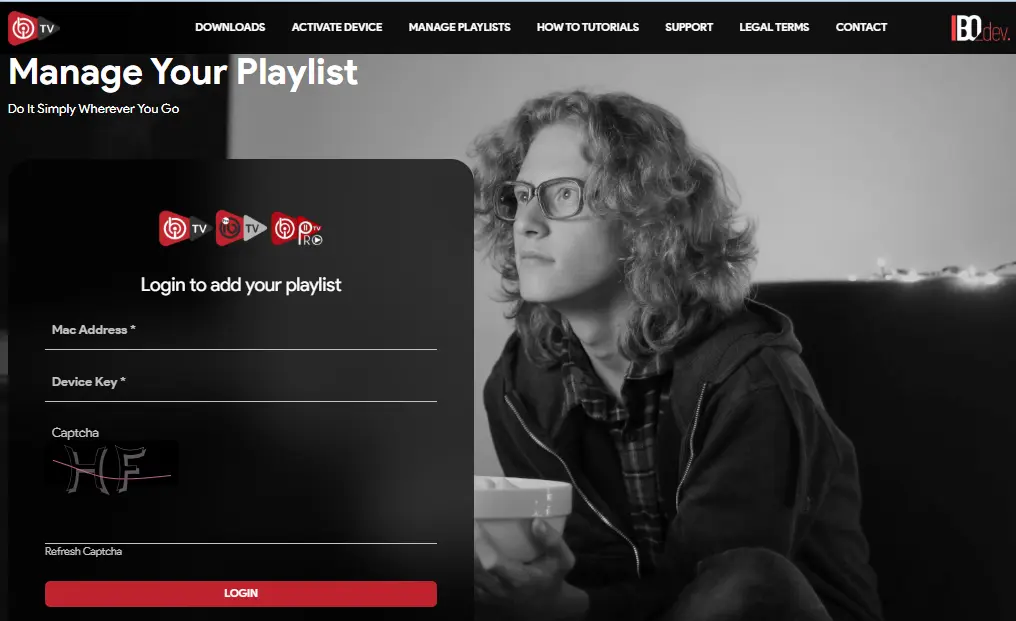
Enter:
– MAC Address
– Device Key
– Security Code
Click Login.
You will now access the playlist management dashboard.
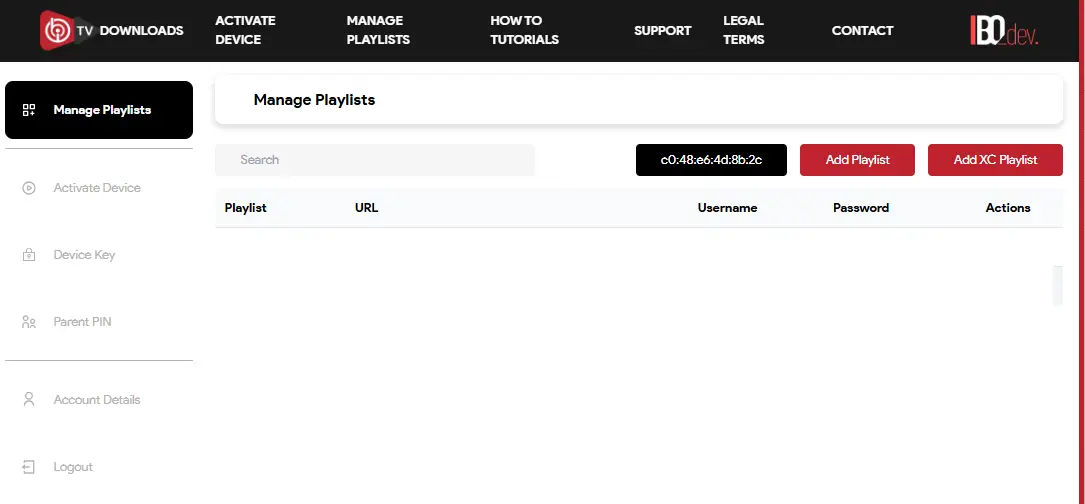
Click Add Playlist
Step 4 – Upload Your M3U Link
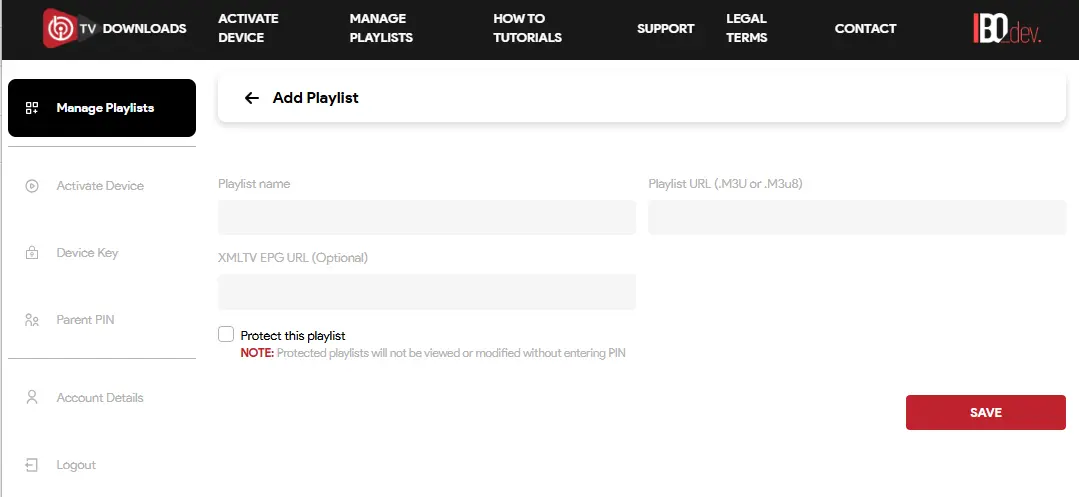
Then:
– Paste your IPTV M3U link
– Enter a playlist name
– Click Save
Go back to your TV and press Reload or restart the app.
Your IPTV channels should now appear.
How to Update or Change Your M3U Link
If your IPTV provider sends a new URL:
1. Log in to Manage Playlist
2. Delete the old link
3. Add the new M3U URL
4. Save changes
5. Restart the app
Updates apply instantly.
IBO Player M3U Not Working? Here’s Why
If your playlist doesn’t load, check the following:
✔ M3U link copied correctly
✔ No extra spaces in the URL field
✔ IPTV subscription still active
✔ IBO Player license activated
Most issues are caused by expired IPTV access or inactive player licenses.
Do You Need to Activate IBO Player?
Yes.
After the free trial ends, activation is required to permanently store and sync your playlists.
Without activation:
– Playlists may not save
– Channels may disappear
– Access can be restricted
Activate IBO Player License
Unlock full access and stream without interruptions.
✔ Instant activation
✔ Secure payment
✔ 1-Year or Lifetime license
✔ Works worldwide
Häufige Fragen zum IBO Player M3U hochladen
Wie kann ich im IBO Player M3U hochladen?
Um im IBO Player M3U hochladen zu können, öffnest du zunächst die offizielle Webseite, meldest dich mit deiner MAC-Adresse und dem Device Key an und fügst anschließend deinen M3U-Link im Bereich „Add Playlist“ ein. Danach speicherst du die Einstellungen und startest die App neu.
Warum wird meine Playlist im IBO Player nicht angezeigt?
Wenn deine Playlist nicht angezeigt wird, liegt das meist an einem falsch kopierten M3U-Link, einem Leerzeichen im URL-Feld oder daran, dass dein Player noch nicht aktiviert wurde. Überprüfe außerdem, ob dein Anbieter den Zugang freigeschaltet hat.
Wo finde ich meine MAC-Adresse und den Device Key?
Die MAC-Adresse und der Device Key werden direkt beim Start des IBO Players auf deinem Smart TV angezeigt. Diese Daten benötigst du, um dich auf der Webseite anzumelden und deine Playlist zu verwalten.
Kann ich mehrere M3U-Links im IBO Player hinzufügen?
Ja, im Bereich „Manage Playlists“ kannst du mehrere Playlists hinzufügen und verwalten. Jede Liste kann separat bearbeitet oder aktualisiert werden.
Muss der IBO Player aktiviert sein, um eine M3U-Liste hochzuladen?
Ja, nach Ablauf der Testphase muss der IBO Player aktiviert werden, damit deine Playlist dauerhaft gespeichert und genutzt werden kann.